Edit your one-click policies or Purview will disappoint you


Turning on DSPM for AI’s one-click policies gets your dashboards populated, but it doesn't guarantee prompt and response bodies in Activity Explorer. Without a specific edit, you'll mostly see headers, counts, and detections (not the text you need).
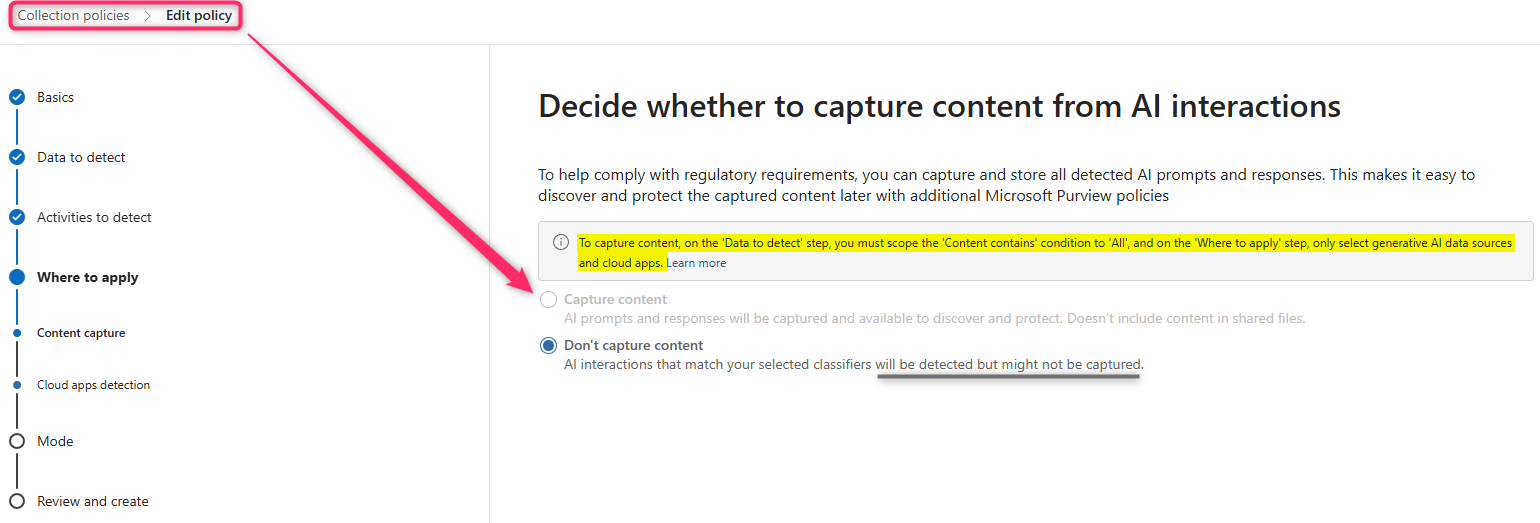
"One-click" creates the coverage that you want, but it doesn't finish configuration for the evidence-grade telemetry that you need.
In order to fix...
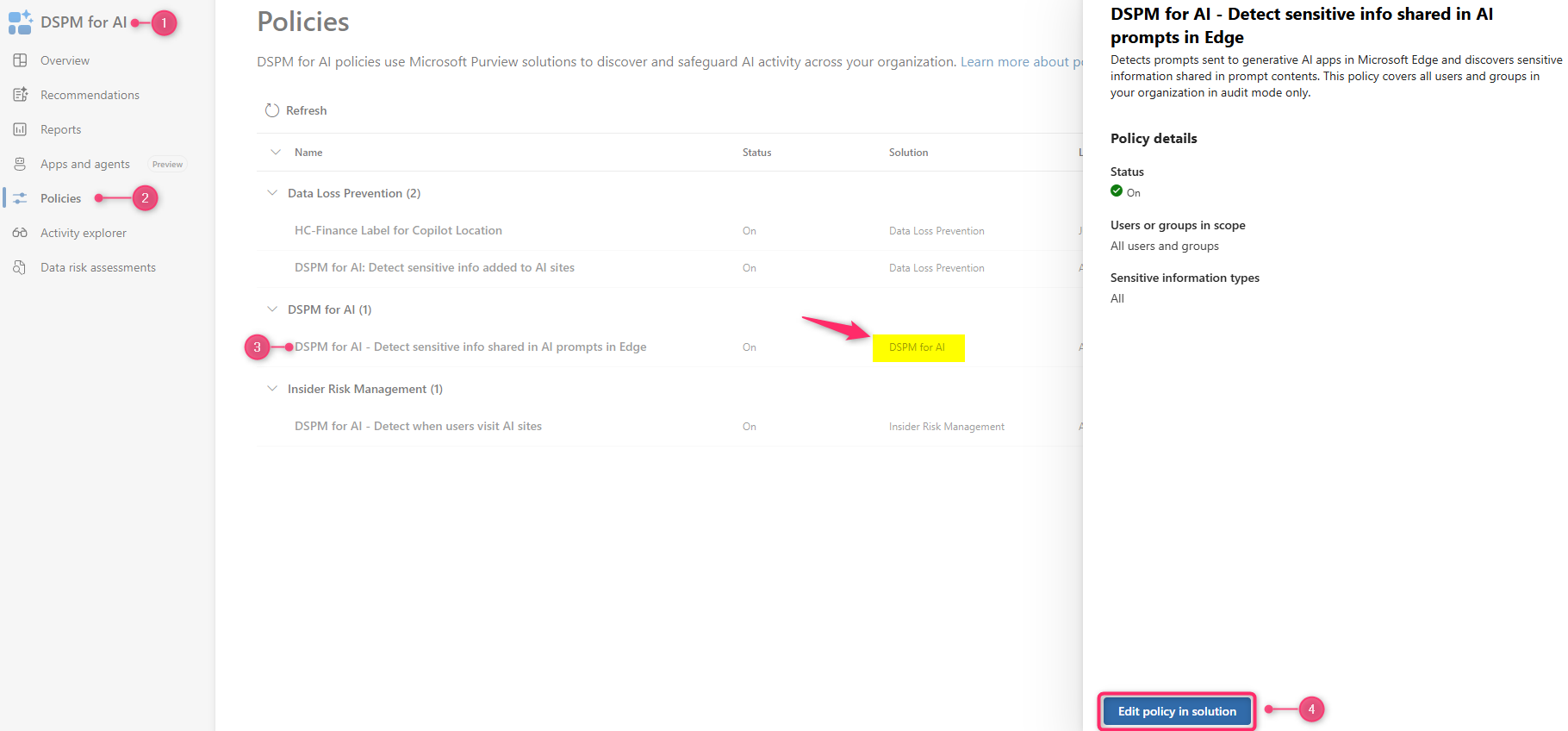
- Pick a DSPM for AI policy and click "Edit".
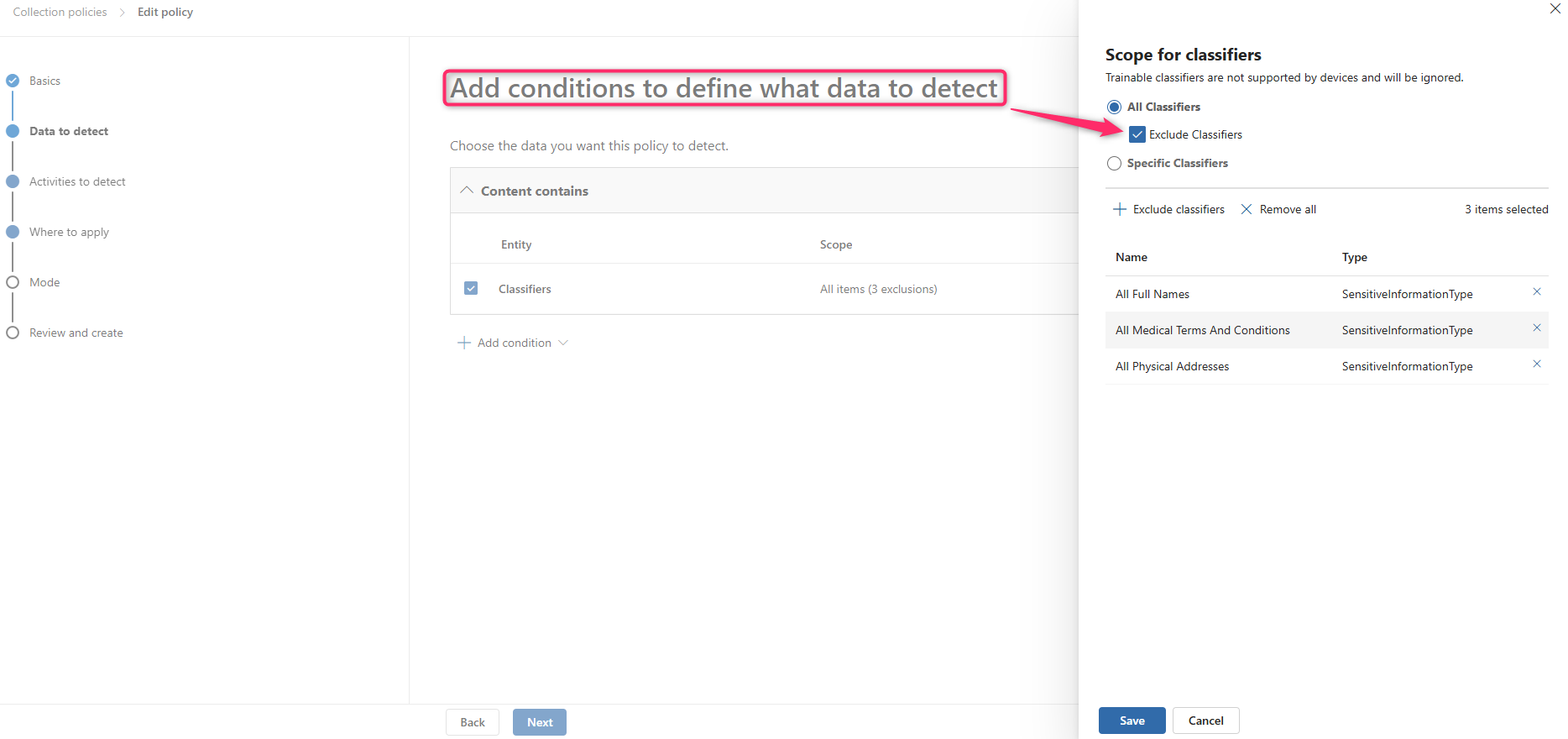
- Step-through the policy wizard until you get to "Data to detect".
- Remove the exclusions.
- Enable the previously unavailable "Capture content" option.
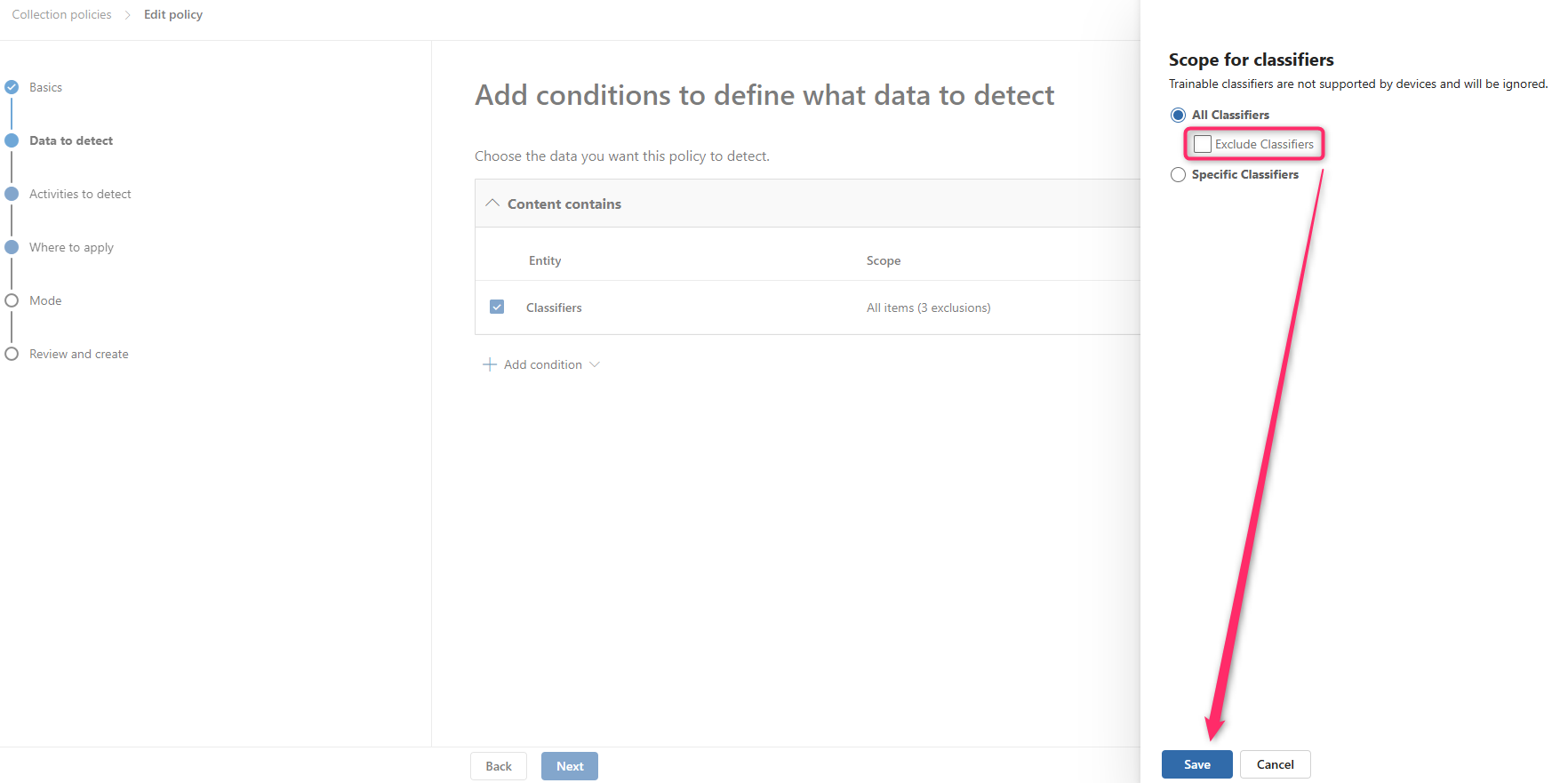
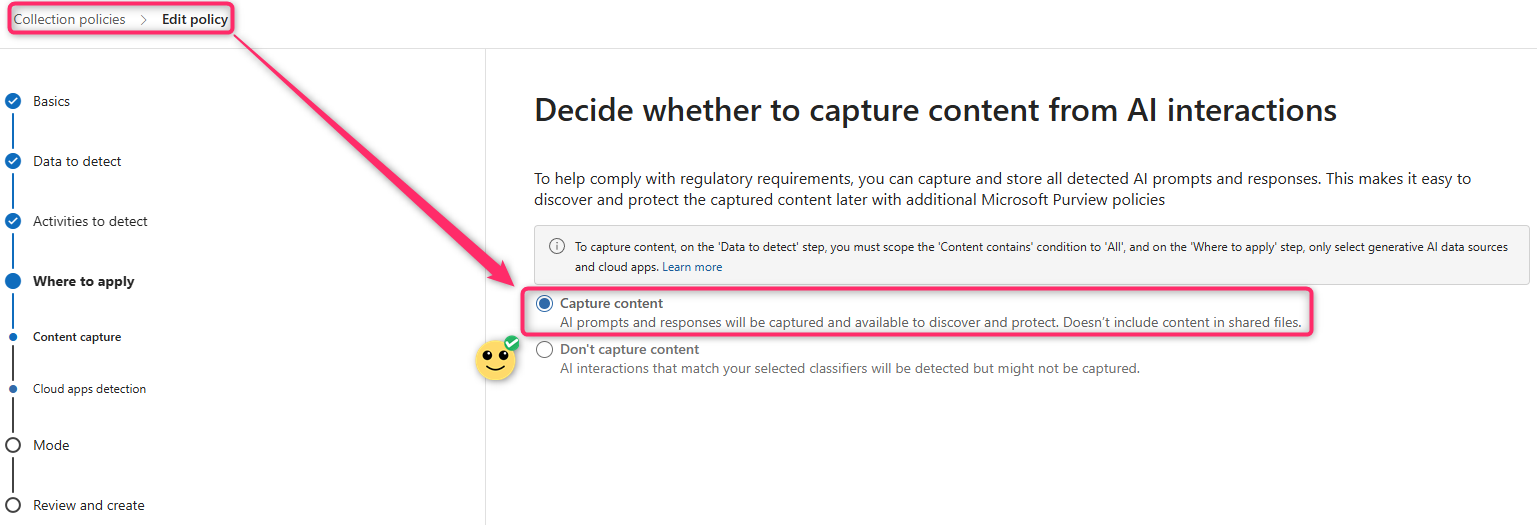
📌
Confirm your account is granted "Content Explorer Content Viewer" rights so you can actually see captured text.
Trust but verify!
Run each of these tests to validate your config:
- Ask Copilot to summarize a labeled file.
- Trigger a Copilot Studio or Entra-registered agent.
- Paste a fake pattern, like a credit card (please don't use your real one), into a third-party AI site from a managed device.
Now check:
- DSPM for AI "Apps & agents" → the app or agent appears with activity.
- Activity explorer → filter by AI interaction. You should see prompt and response text in the details pane after your edit.
- Audit → this is optional, but checking it allows you to cross-check that events actually landed.
Compliance investigations live or die on context. Counts and detections help with posture, but incident response, legal hold, and user coaching need the actual words. Configure your Data Security tools with the assumption that leadership will demand evidence and accountability.